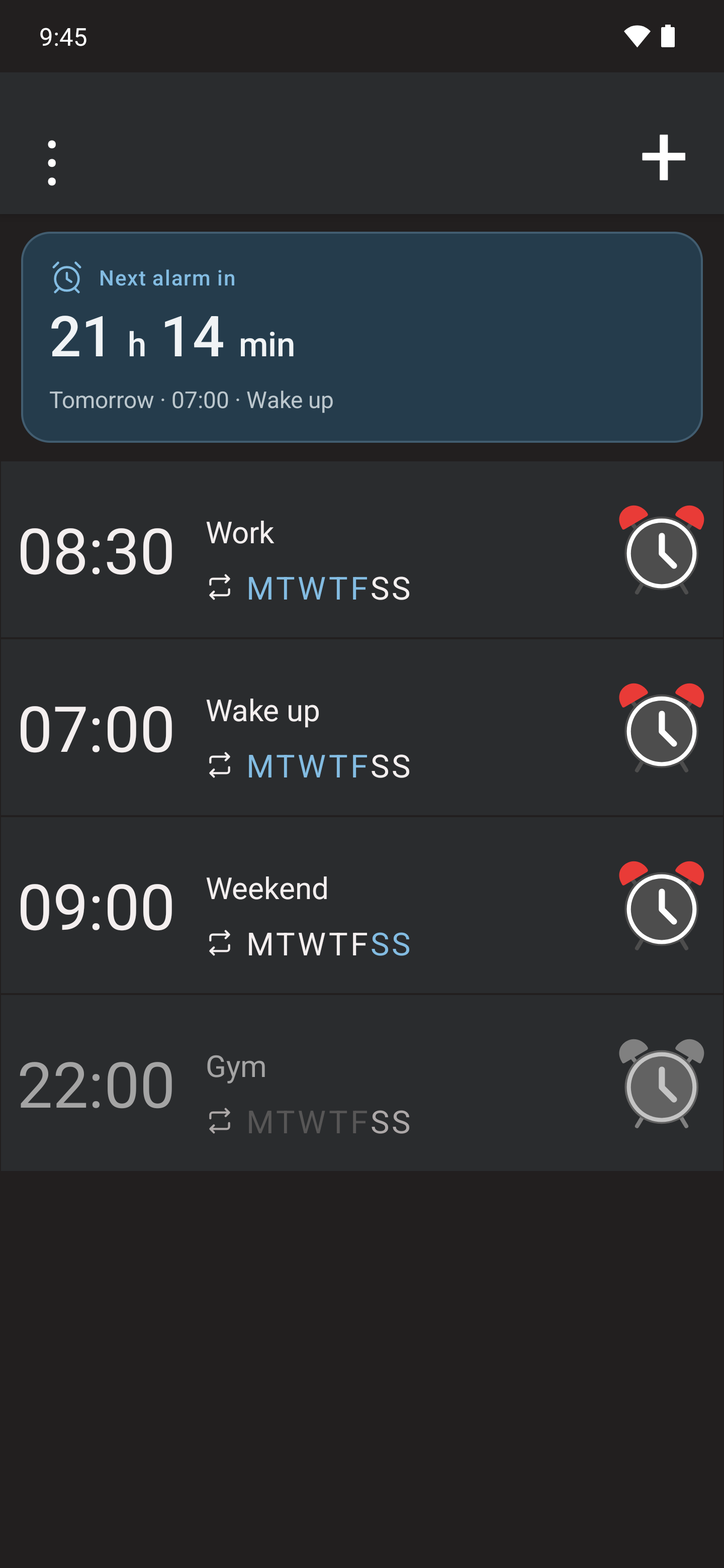
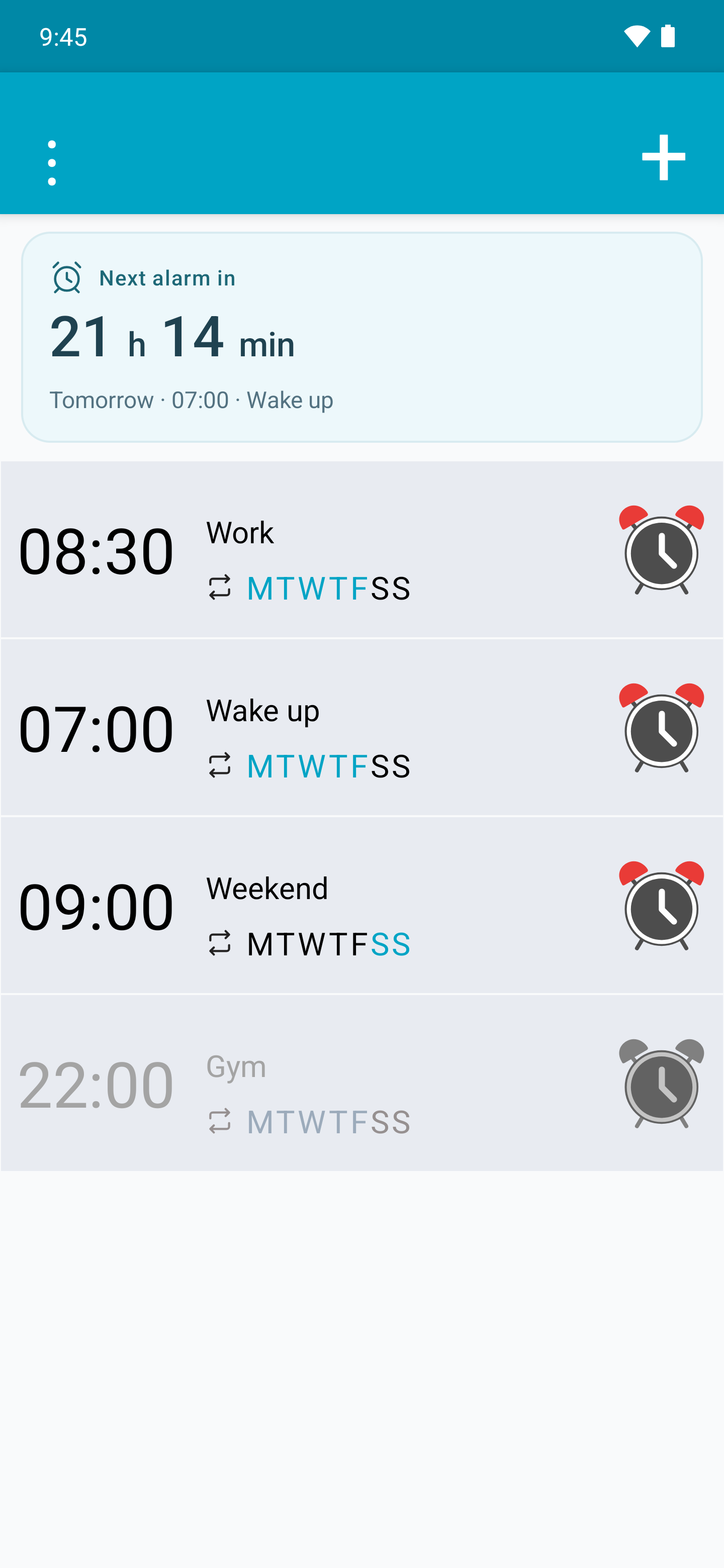
Create and organise alarms
Set the time, days and repeat schedule; edit and reorder your alarms.
Create an alarm
- In Alarm, tap + and select the time. Check AM or PM when using the 12-hour format.
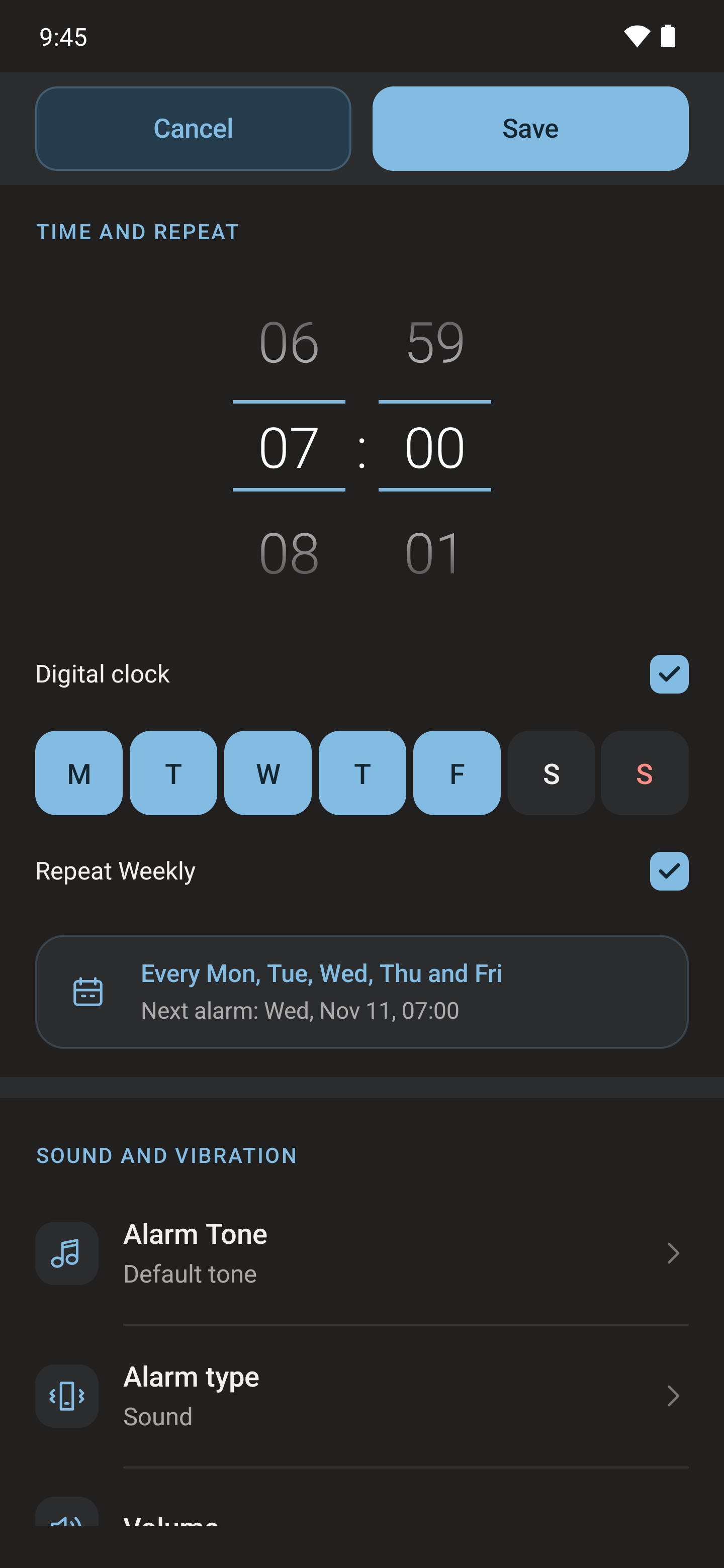
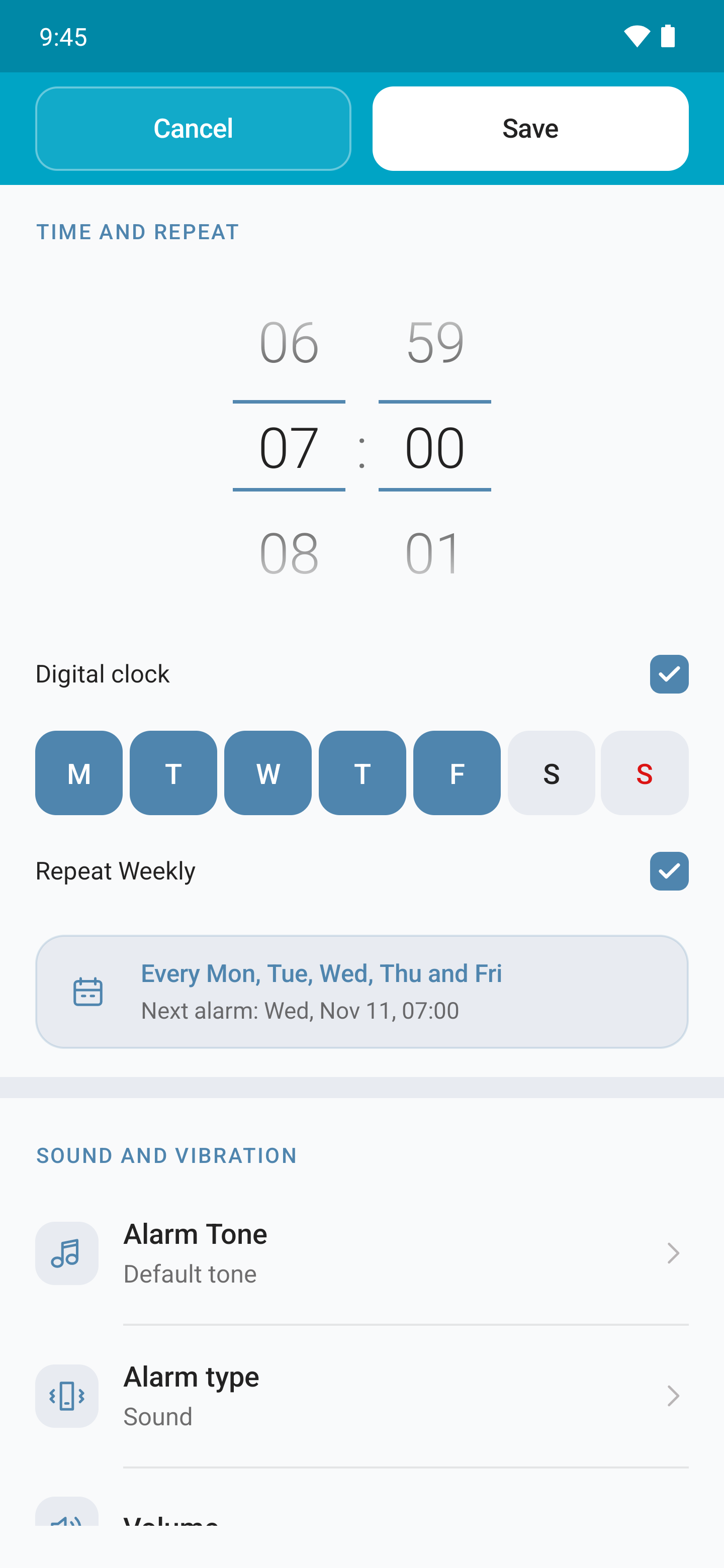
- Enter a name and select the days it should ring. Review the next activation shown before saving.
- Configure sound, vibration and other options. Scroll through the editor to reach the settings below.
- Tap Save. Check the time and the alarm switch in the list.
Once or every week
With no days selected, the alarm is scheduled for the next occurrence of the chosen time: today if it has not passed, otherwise tomorrow. The preview tells you when.
With days selected and weekly repeat off, it rings on the upcoming dates for those days and turns off once they have all been used. Enable weekly repeat to keep ringing on those days every week. Selecting all days without repeat does not create a permanent daily alarm.
Edit, disable and reorder
Tap an alarm to edit it. Its switch disables it without deleting it. Saving in the editor enables it again.
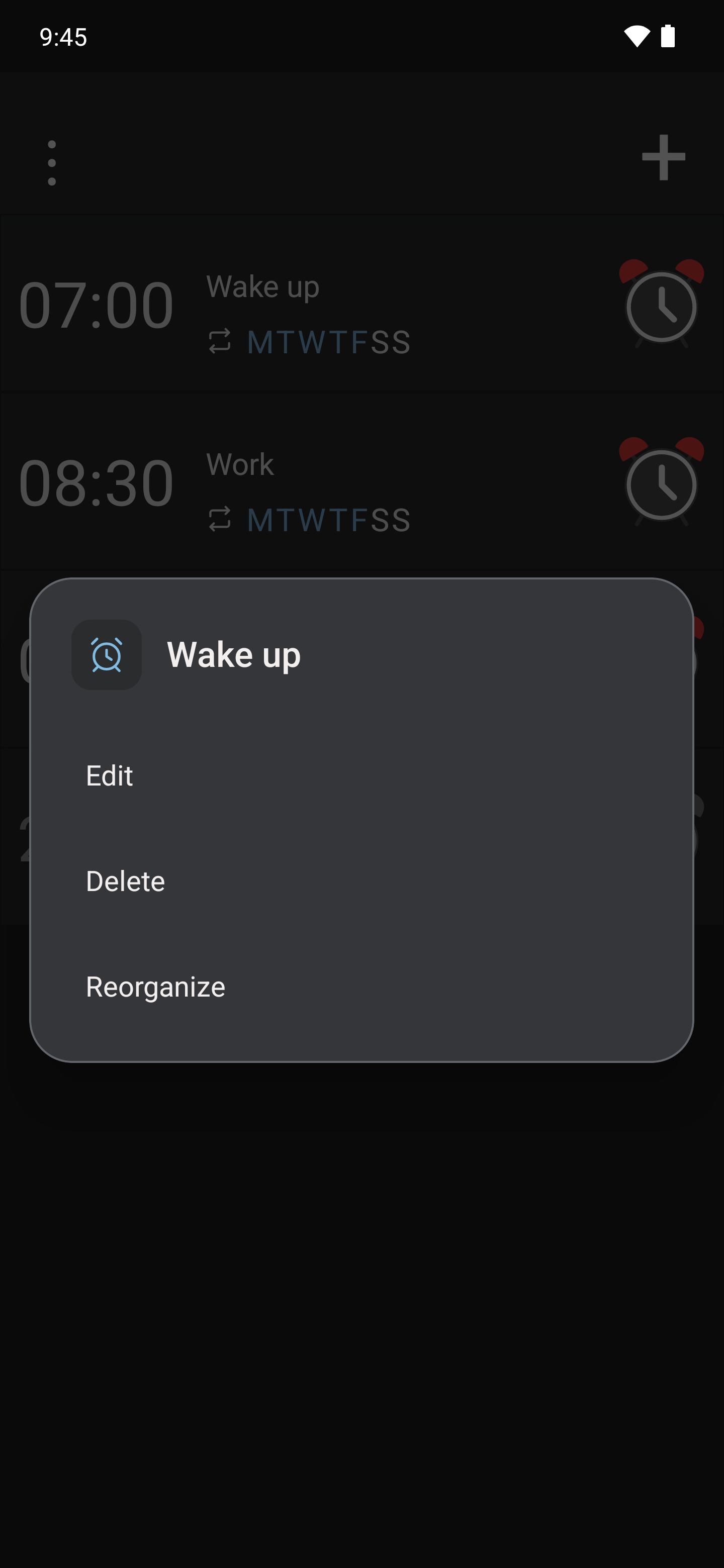
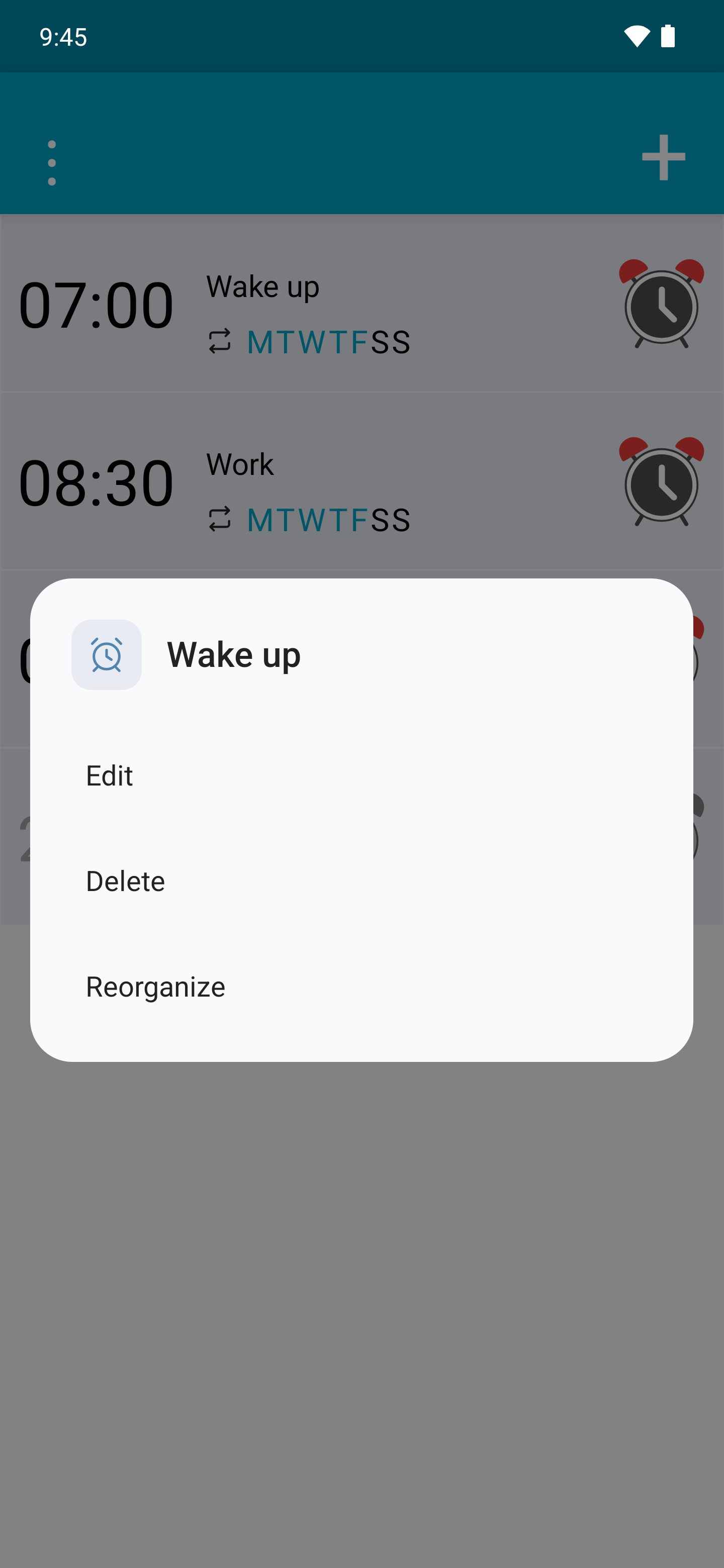
Hold a row to open the edit, delete and reorder options. In Reorder, drag the handles and finish reordering when done. The display order does not change the scheduled times.
To delete an alarm, choose the corresponding option and confirm. The next-alarm display is calculated from enabled alarms.
Reorder alarms
- Hold an alarm and choose Reorder in the menu.
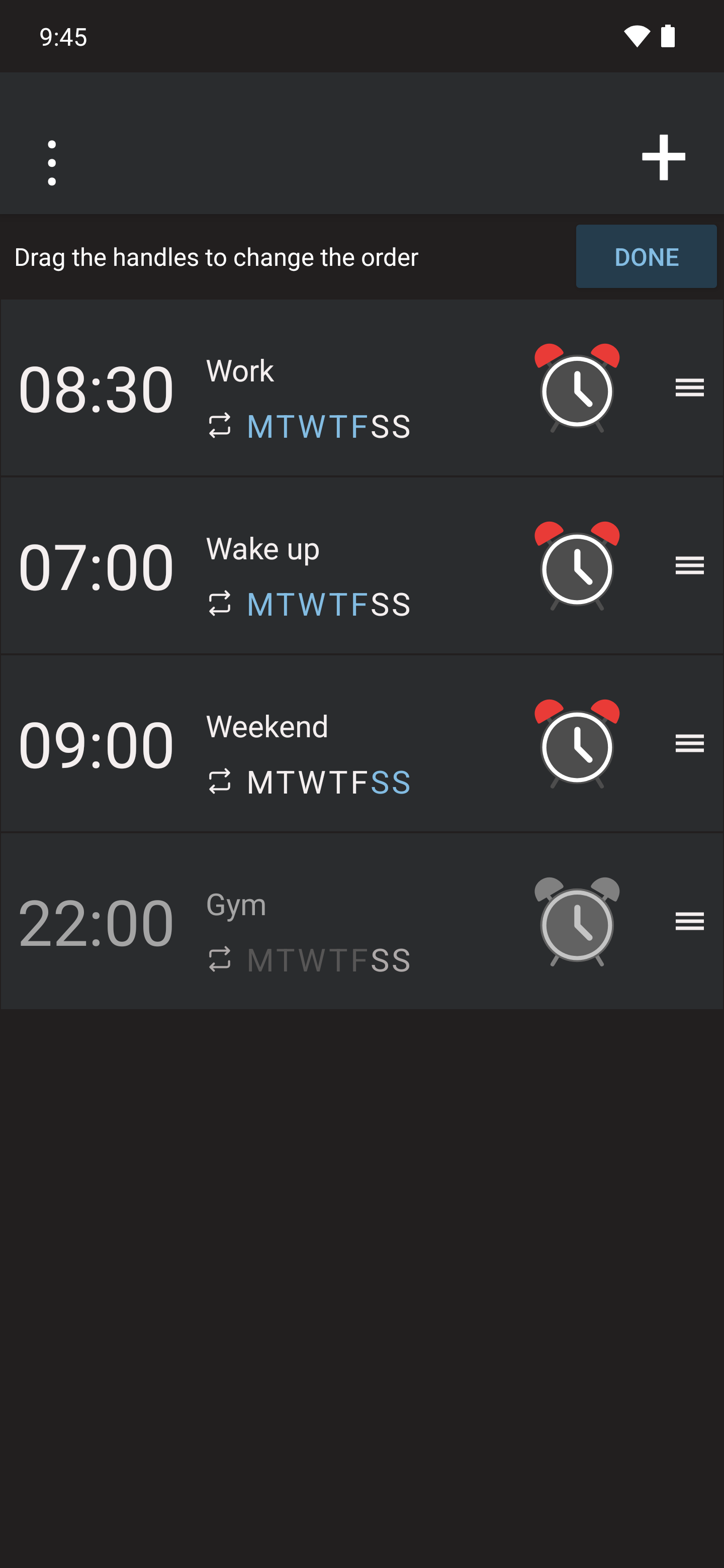
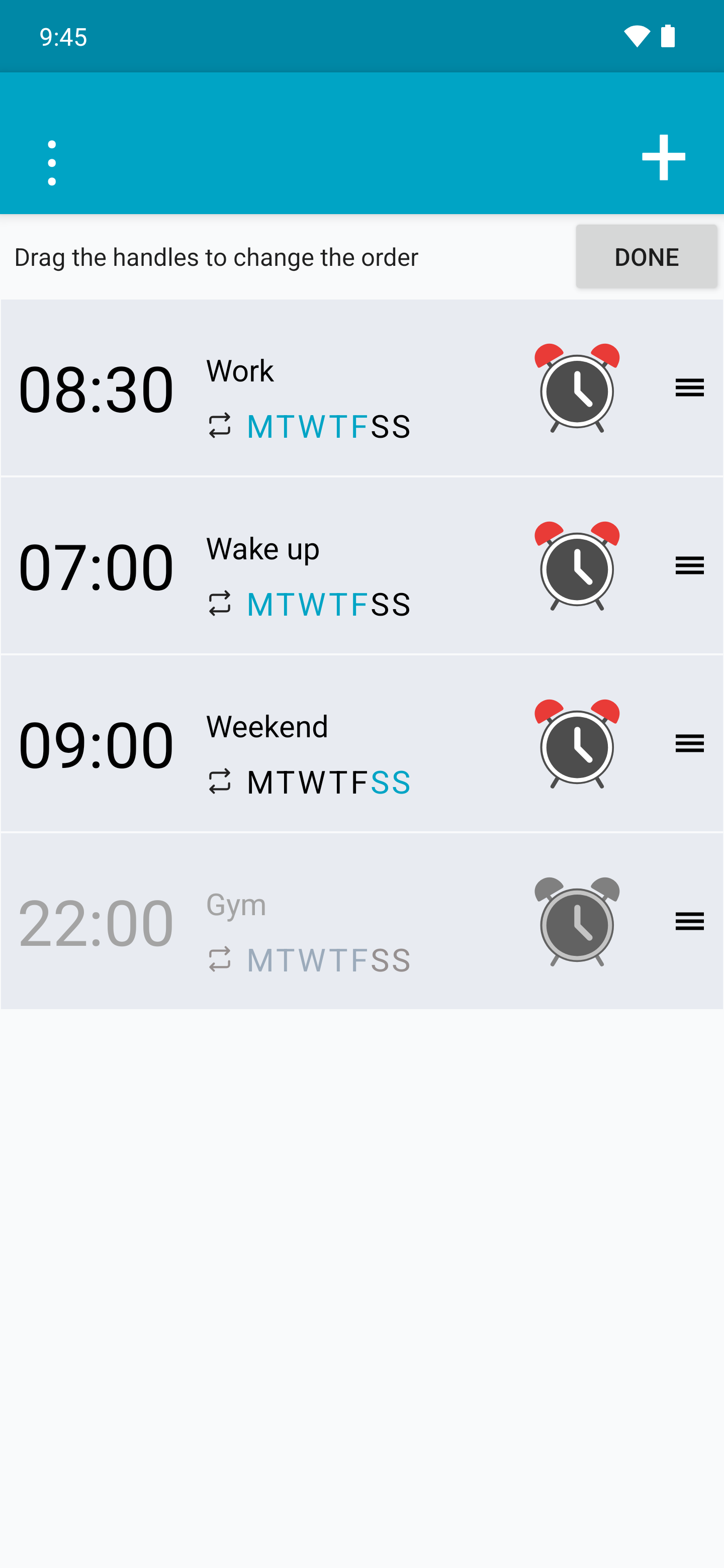
- Drag its handle up or down to the desired position. List order does not change the scheduled times.
- Use the control to finish reordering. You can also tap a handle and choose Move up or Move down.


See how long until the next alarm
- At the start of the list, drag your finger down to reveal the panel above the alarms.
- The panel shows the remaining time and details of the next enabled alarm. Scroll the list up again to hide it. This is not a countdown for an arbitrary row: it refers to the next scheduled alarm.